
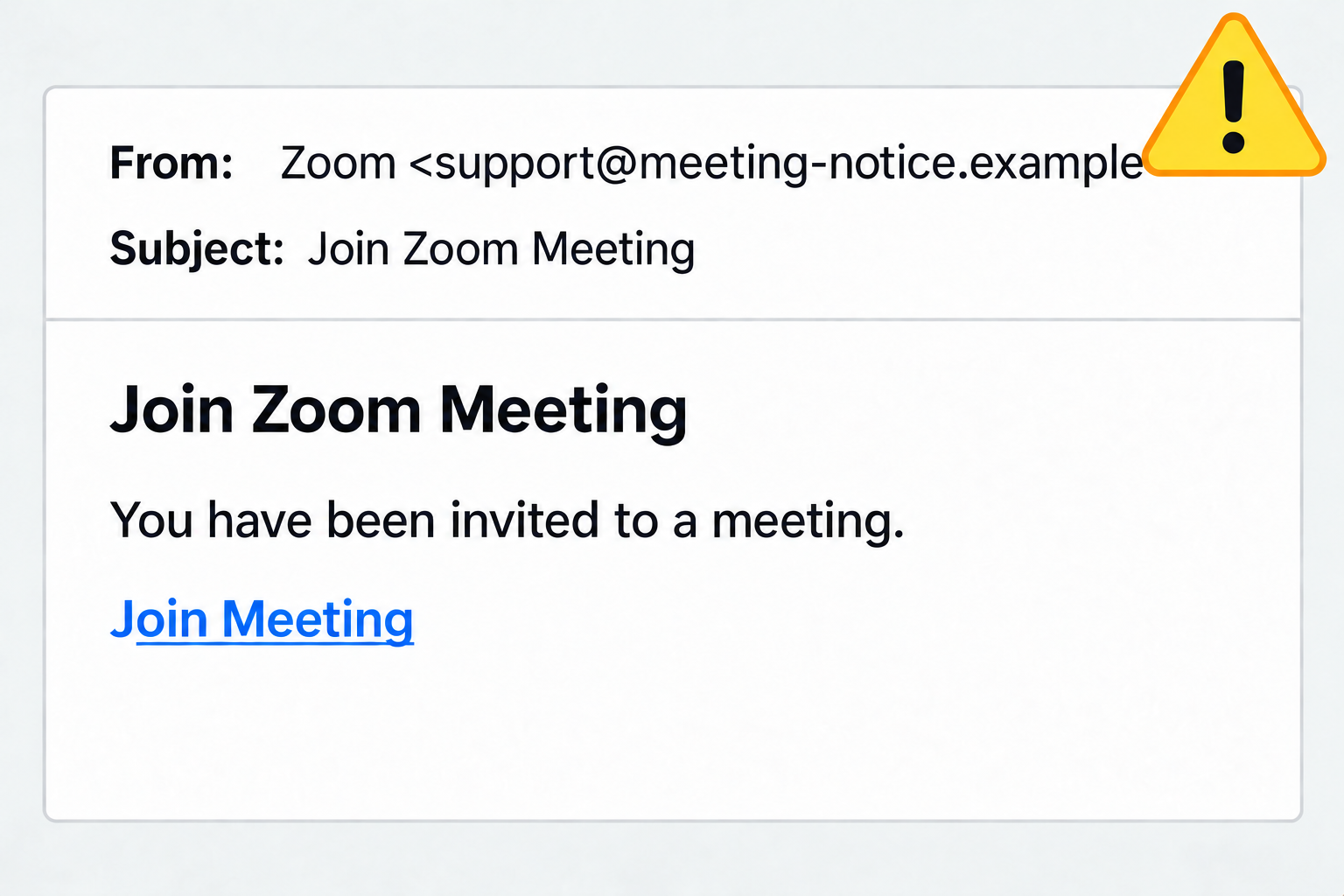
You’re checking your inbox when an email appears: “Your meeting starts in five minutes.”
There is a “Join Zoom Meeting” button. Maybe you don’t remember scheduling the call, but you click because you don’t want to keep someone waiting.
The page looks like Zoom. It asks you to sign in or download an update before joining.
But the invitation is fake—and the website belongs to a scammer.
This is phishing: someone pretending to be a trusted person or company to trick you into sharing information or taking unsafe action. Researchers have documented fake Zoom invitations that lead to copied login pages or harmful downloads.
Clicking the link can take you to a convincing fake website. What you do there can give the scammer access to your accounts or computer.
A fake login page can steal your password. Anything you type goes to the scammer. They can then try to access that account—and other accounts where you use the same password.
A fake update can give someone access to your computer. Some Zoom scams trick people into installing software that lets an attacker control the device remotely, steal information, or install more harmful programs.
For an insurance agency, that could mean exposing client information, interrupting daily work, or giving a criminal access to business accounts. An attacker who gets into your email could also impersonate you when contacting clients or coworkers.
If an invitation surprises you, take a moment to check out the request.
Missing meeting details, unfamiliar senders, and pressure to act quickly are reasons to pause. But a meeting ID, calendar attachment, or familiar sender name alone cannot prove an invitation is safe.
If you opened the page, the next step is to close it and report the message to your IT or cybersecurity team. Provide detailed information on whether you entered a password, downloaded a file, or installed anything.
If you shared a password, the next step is to change it through the real service using a trusted device. Change it anywhere else you reused it and ask your IT team to review account activity and end suspicious sessions.
If you downloaded a file, don’t open it. Let your IT team know so they can check it safely.
If you installed software, disconnect the device from Wi-Fi or the network and contact your IT team immediately.
To better protect your accounts, use a unique password for each one and enable multifactor authentication, which adds another check when you sign in.
Before joining an unexpected meeting, make sure the invitation is real—even if that means joining a minute late.
Your team shouldn’t have to spot every scam on its own.
CyberFin provides email protection, device security, and employee training to help your agency reduce the risk of attacks like fake Zoom invitations.
Start with a FREE cybersecurity assessment to understand your gaps.